How to Fix Headless Linux Server Crashes (No Dummy Plug Required)
Mini PCs are awesome. With a Linux OS, you can configure them as powerful servers for a wide range of software and services—from running AI-powered security cameras to hosting internal company sites or even OpenClaw. Repurposing Mini PCs as small servers is a great, inexpensive way to power your services locally.
But if you’ve ever finished a setup and unplugged the monitor, only to leave the machine humming away in the background, you’ve probably experienced the “headless panic.”
The Setup vs. The Reality
You spend hours perfectly configuring the OS, setting up Docker containers, and writing an optimized Ansible playbook. Everything is humming along beautifully; your terminal is blinking, and your SSH connection is snappy.
Happy with your work, you unplug the keyboard and monitor to move the mini-server to its rightful shelf. Then, it happens.
The moment you unplug the monitor, the hard drive light stops blinking, your web services lose connection, and your SSH session suddenly stops responding.
Why Does the Server Crash When Unplugged?
Mini office PCs (like the HP ProDesk, Lenovo Tiny, or Dell Micro) are fantastic, low-power machines. However, they were designed to sit on office desks connected to monitors, not on a server rack in total isolation.
When you unplug the monitor while the server is running, the Intel Integrated Graphics (which you need for tasks like Frigate hardware acceleration or Plex transcoding) suddenly loses its physical display connection. The graphics driver panics, throws a fatal error, and crashes the Linux kernel.
Then the death loop begins.
When the server crashes, it attempts to restart. But because it reboots without a monitor detected, the BIOS often gets confused and halts the boot process entirely. Your server is now stuck in digital limbo.
The Not-So-Good Hardware Solution
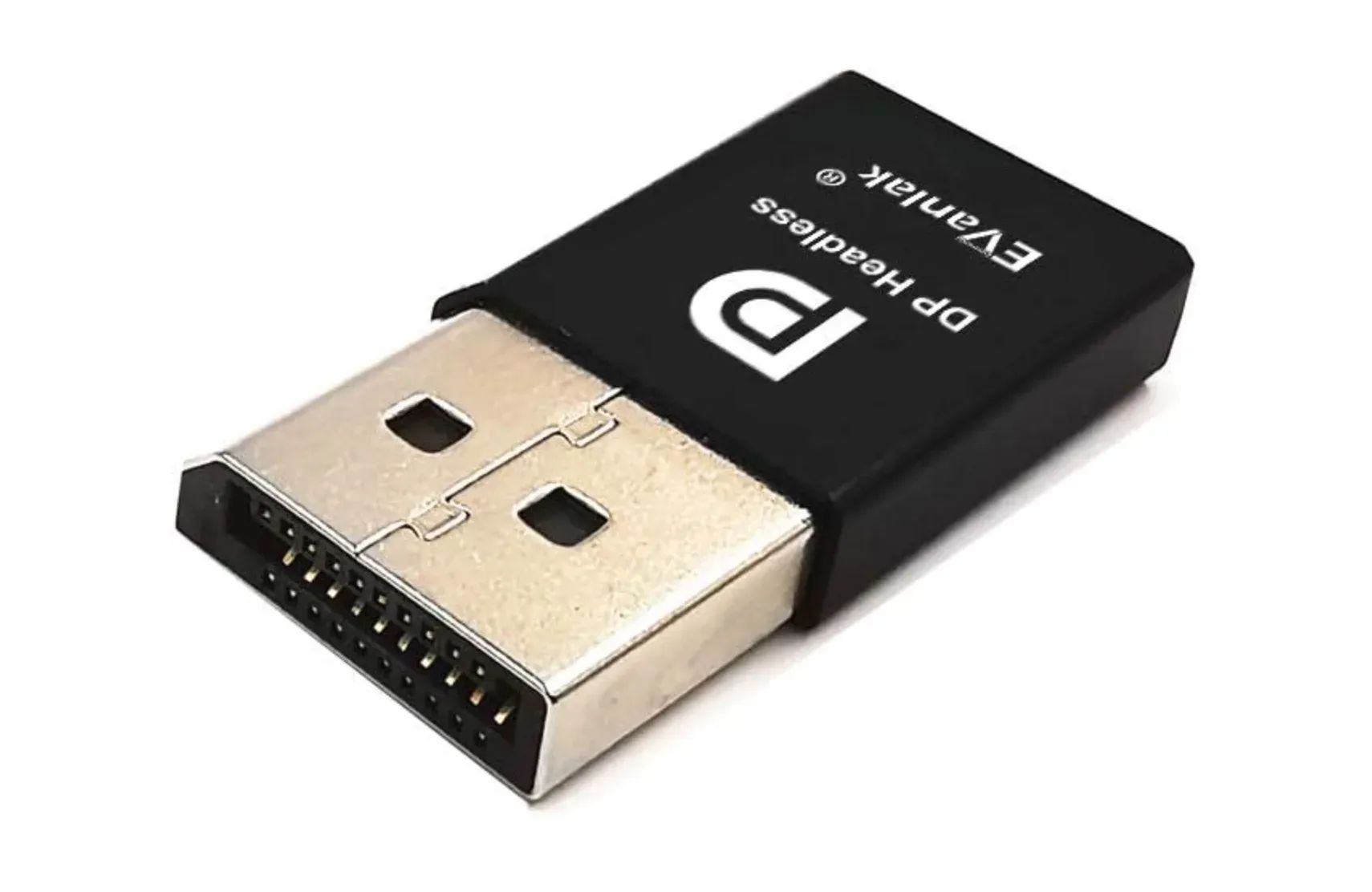
This is a well-documented issue, and the common solution is to trick the PC by buying a ‘dummy plug’. This is a HDMI or DisplayPort end with a little chip inside it that emulates a real display. The computer speaks to the connected dummy plug, thinks it’s powering a real monitor and the graphics cores keep working.
Hundreds of these listings are live across the internet and you can buy a HDMI one from Amazon for under £10 here. Or a DisplayPort dummy plug here.
Disclaimer: As an Amazon Associate, I earn commission from this referral should you choose to ignore my software solution and buy the dummy plug. I hope that sounds a fair deal!
However, these cost money and take days to arrive. Furthermore—the dealbreaker for me—I didn’t want a fragile dummy plug sticking out of my sleek Mini PC, ready to get snapped off the next time I pushed the unit too far back on the shelf. Besides, we’re software engineers; surely we can use code to solve a hardware problem.
Last Thursday night, I found myself in this exact position. I’d worked past midnight setting up an edge server running AI security recordings on Frigate. The moment I unplugged the monitor, it all broke. I went to bed feeling defeated. I knew the dummy plug was the standard fix, but with a bank holiday weekend approaching, I didn’t want to wait four days for a device that might not even arrive on time.
After several failed attempts at disabling sleep settings and tweaking GRUB files, I finally cracked it with one line of code.
The 1-Line Software fix
Our Software fix is to tell the Linux bootloader (GRUB) to completely ignore whether a cable is plugged in, and force the graphics ports to stay awake permanently.
(Note: Keep your monitor plugged in while you do this so the server doesn’t crash during the process!)
Step 1: Open your GRUB Configuration
SSH into your server and open the bootloader file using nano:
sudo nano /etc/default/grub
Step 2: Inject the Kernel Parameters
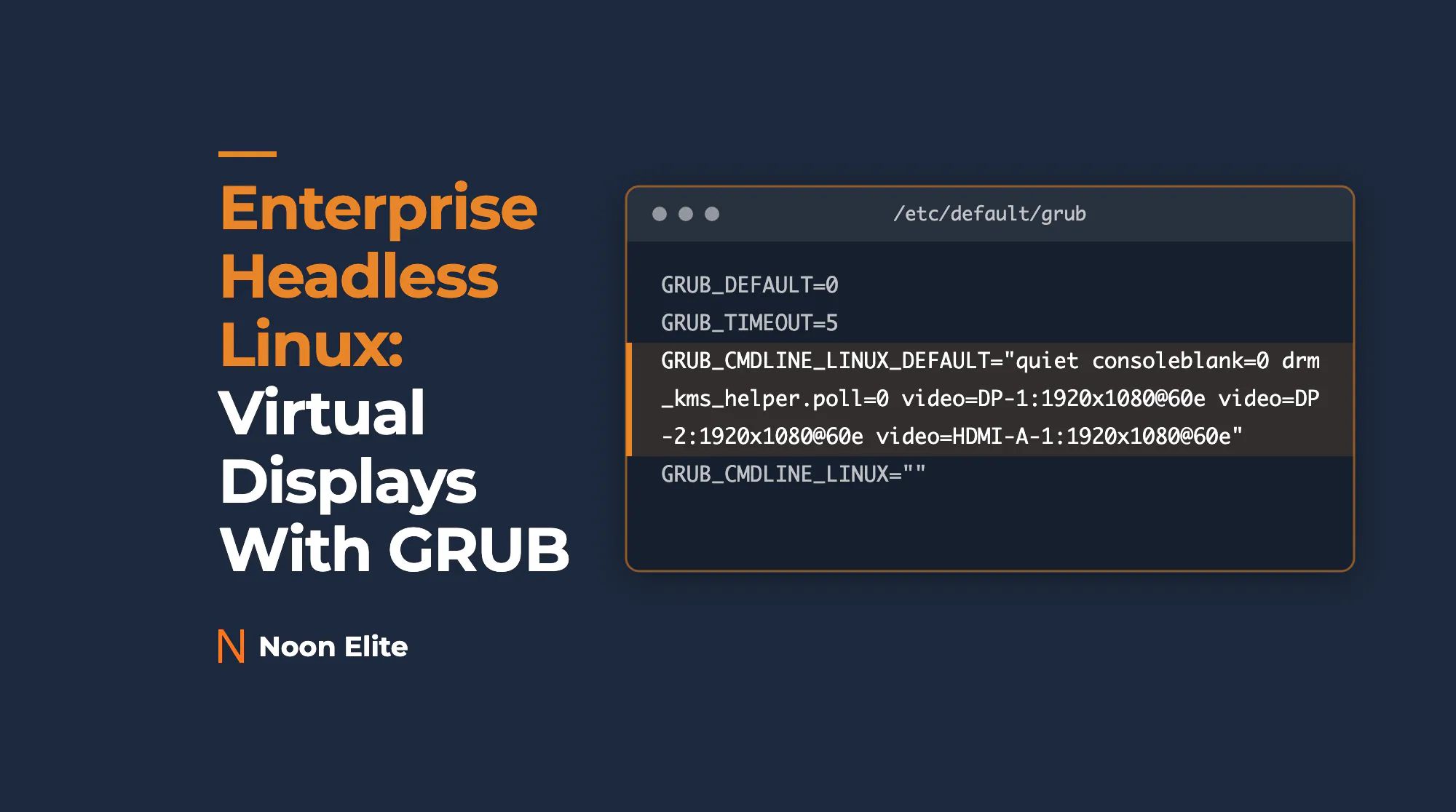
Look for the line that starts with GRUB_CMDLINE_LINUX_DEFAULT. It probably says something like "quiet". We are going to overwrite that line to include our display overrides.
Because mini PCs usually have a mix of DisplayPort and HDMI, we will force all of them to stay awake just to be safe. Change the line to look exactly like this:
GRUB_CMDLINE_LINUX_DEFAULT="quiet consoleblank=0 drm_kms_helper.poll=0 video=DP-1:1920x1080@60e video=DP-2:1920x1080@60e video=HDMI-A-1:1920x1080@60e"
Step 3: Apply and Reboot
Save the file (Ctrl+O, Enter, Ctrl+X). Then, tell the server to apply the new boot rules and restart:
sudo update-grub
sudo reboot
How the Magic Works
When your server boots back up, you can safely yank the HDMI cord out of the back. The server will not crash, and your SSH connection will stay perfectly alive.
Here is why that gibberish we just typed actually works:
drm_kms_helper.poll=0 — This tells the Linux display manager to stop checking if a monitor is physically plugged in. It effectively blinds the operating system to the physical act of yanking the cable out.
video=DP-1:1920x1080@60e — This hardcodes a phantom 1080p, 60Hz monitor to the graphics card.
The magical e — Notice the e at the very end of the video commands? That stands for “Force Enabled.” It physically forces the Linux kernel to keep the port active and awake, permanently tricking the Intel GPU into thinking a monitor is connected.
If all goes well, your hardware acceleration will now work flawlessly, and your server can live happily in a dark closet forever without a monitor plugged in, nor a dummy plug purchased.
Get the code on Github
For convenience, I’ve added the code along with alternative methods to a free GitHub repository. You are welcome to use it under the MIT license here.
Want a Helping hand?
Looking for more advanced home automation or commercial infrastructure? At Noon Elite, we build custom, high-end server architectures and private smart-home networks. If you want a system that just works—without having to fight the Linux kernel at 2 AM—get in touch with us!